
Optipustics
(aka Particles) are the silly-named procedural brushes that do
a variety of things, from rendering grass and trees to realistic
bristle brushes, animate waterfalls, fairy dust, and fire.
Optipustics can be used to generate particles along the mouse path, which can split into more trails over time. They can also change color according to the Gradient settings. This is a great feature for making foliage effects of many kinds, as well as grass, bushes, hair, fur, water fountains, fireworks and such. Particles can have mass and be subject to gravity, causing the branches to show weight and bend down. Or up depending on the value of gravity.
There are four modals on the Optipus panel: Particles, Bristles, Orbicles, and Foliage
 There
are a number of preset effects possible with Optipustics. You can
try them for yourself by clicking on the ‘Settings’
button at the bottom.
There
are a number of preset effects possible with Optipustics. You can
try them for yourself by clicking on the ‘Settings’
button at the bottom. You'll have to be sure you have checked the Enable button before
you can draw with Optipustics.
You'll have to be sure you have checked the Enable button before
you can draw with Optipustics.

 Max
particles controls how many particles are emitted at a given
time. It is the maximum number of particles that can be in
circulation. When a particle dies (reaches the end of it's
lifespan) it is recycles and available to be used again.
Max
particles controls how many particles are emitted at a given
time. It is the maximum number of particles that can be in
circulation. When a particle dies (reaches the end of it's
lifespan) it is recycles and available to be used again. Max
particles at 20
Max
particles at 20 Max
particles at 500
Max
particles at 500 When
you move the mouse to draw a path, there is not an infinite
granularity to the information uses to duplicate that motion by
the computer. Actually, a relatively small number of samples
are taken from the mouse or tablet, possibly 20-60 per second.
Then the computer uses these samples to draw your path.
When
you move the mouse to draw a path, there is not an infinite
granularity to the information uses to duplicate that motion by
the computer. Actually, a relatively small number of samples
are taken from the mouse or tablet, possibly 20-60 per second.
Then the computer uses these samples to draw your path. Using
the same value for Particles per emission and Max particles will
cause the particle system to emit all available particles at the
same time, causing them to clump up. You won't see anymore
particles until all of them have recycled.
Using
the same value for Particles per emission and Max particles will
cause the particle system to emit all available particles at the
same time, causing them to clump up. You won't see anymore
particles until all of them have recycled.
 This
set of controls have to do with the physical properties of your
particles.
This
set of controls have to do with the physical properties of your
particles. The
lifespan controls how long the particle stays active. The
longer it's around, the longer tail it will draw.
The
lifespan controls how long the particle stays active. The
longer it's around, the longer tail it will draw. Splits
is the number of times a particle will branch into other particles
when it dies. After a particle has used up its lifespan, and
it hasn't used up its splits, then it will split into 2 new
particles, each of which have 1/2 the lifespan of the parent.
Splits
is the number of times a particle will branch into other particles
when it dies. After a particle has used up its lifespan, and
it hasn't used up its splits, then it will split into 2 new
particles, each of which have 1/2 the lifespan of the parent.
 This
value randomizes all of the above settings to give a somewhat
unpredictable behavior to the particles.
This
value randomizes all of the above settings to give a somewhat
unpredictable behavior to the particles. Use
mouse velocity adds a velocity to the initial velocity value,
based on the speed of the mouse as you draw a brush stroke.
This value is only applied when particles are created, and not as
they are moving through space.
Use
mouse velocity adds a velocity to the initial velocity value,
based on the speed of the mouse as you draw a brush stroke.
This value is only applied when particles are created, and not as
they are moving through space. Particles
follow mouse causes the vector of the mouse to influence the
particles, with the result of particles swarming in the same
direction as the mouse pointer. This can drastically alter
the motion of branches as they travel.
Particles
follow mouse causes the vector of the mouse to influence the
particles, with the result of particles swarming in the same
direction as the mouse pointer. This can drastically alter
the motion of branches as they travel.
 A
gradient can drastically alter the color and appearance of your
particles. You can select any of the 8 gradients with the
Gradient index slider. You can edit a gradient by clicking
on the gradient swatch above.
A
gradient can drastically alter the color and appearance of your
particles. You can select any of the 8 gradients with the
Gradient index slider. You can edit a gradient by clicking
on the gradient swatch above.
 The
opacity channel on the gradient editor can be used to fade the
branches out.
The
opacity channel on the gradient editor can be used to fade the
branches out. The
Style setting determines what kind of brush is used to draw the
particles.
The
Style setting determines what kind of brush is used to draw the
particles. Using
a natural brush with particles.
Using
a natural brush with particles. Nova
used for an animation of fairy dust. See below for an
example of animating particles.
Nova
used for an animation of fairy dust. See below for an
example of animating particles. The
shading parameter determines if your particles receive a shading
effect or not.
The
shading parameter determines if your particles receive a shading
effect or not. Example
with and without shading.
Example
with and without shading.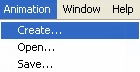 The
first step in animating anything is to allocate a number of frames
for your animation. Select Create from the Animation menu,
and you will be presented with a small panel asking you for the
number of frames you would like to have. Enter 30 for this
example.
The
first step in animating anything is to allocate a number of frames
for your animation. Select Create from the Animation menu,
and you will be presented with a small panel asking you for the
number of frames you would like to have. Enter 30 for this
example.
 We
will now edit the gradient so we have more of a fiery set of
colors.
We
will now edit the gradient so we have more of a fiery set of
colors. We
should now have something that looks like this.
We
should now have something that looks like this. Now
undo it. We just wanted the brush motion, not the actual
image created by it.
Now
undo it. We just wanted the brush motion, not the actual
image created by it.


 You
have a fine level of control over how your foliage is rendered,
including the size of the pen, an overall fog level that blends
the pen with a single color. This is adjustable with a “Fog
amount” parameter. A “Gain” parameter controls
the overall brightness of the rendering pen.
You
have a fine level of control over how your foliage is rendered,
including the size of the pen, an overall fog level that blends
the pen with a single color. This is adjustable with a “Fog
amount” parameter. A “Gain” parameter controls
the overall brightness of the rendering pen.