 The
fill panel is host to Howler's fill settings, used by tools like
the floodfill tool, rectangle and ellipse tools, and the curve
tool, to name a few.
The
fill panel is host to Howler's fill settings, used by tools like
the floodfill tool, rectangle and ellipse tools, and the curve
tool, to name a few.
On the top, left, is a preview of what your fill may look like.
To its right are the opacity and dither drop-sliders, as well as an option to make dithering monotone.
The Plain color option button fills using just one single color which is determined by your current primary (or secondary when drawing with the right mouse button) colors.
Fill modes are similar to drawing modes, except that they are used by fill tools. Fill modes let you combine a fill with the existing image in various unique ways.
The Pattern fill option button fills using the current custom brush as a source for the pattern. The pattern will repeat as many times as needed to fill the desired shape. The pattern will always be the same size (same number of pixels) as the original custom brush. Several other modes will re-size the pattern as needed.
The warp fill modes will warp the pattern in unique ways to fill a given shape.
Anti-aliasing ensured that the warp fill is smooth and realistic looking and not blocky, but sometimes you may need to turn it off, so there is a check-box for it.
The gradient fill modes are similar, but use a gradient instead of a pattern.
See below for more information on these modes.
Warp modes
 There
are many ways to fill a shape with a gradient, and many types of
gradients.
There
are many ways to fill a shape with a gradient, and many types of
gradients.
You can use any of the fill tools on the tool panel to fill a shape.
You can also use an alpha channel tool, and fill it either with the paint can, or by pressing the 'q' key.
That is the method that was used for all of these examples. Pressing the 'q' key will fill the alpha selection with whatever fill mode you have selected on the Gradient/fill panel.
You can see in the examples the various modes offered.
 In
these examples, the second row of icons were used to select a
brush warping mode.
In
these examples, the second row of icons were used to select a
brush warping mode.
Brush warping uses the current custom brush as an image or pattern.
Each mode warps the brush in different ways, as you can see.
You can achieve a nice globe by warping a brush of a map into a sphere using the 'warp both' mode.
Dithering
 In
the center of the panel, you have a control that adds some
dithering to your fill. This can be useful for breaking up
gradients that might tend to look plain, otherwise.
In
the center of the panel, you have a control that adds some
dithering to your fill. This can be useful for breaking up
gradients that might tend to look plain, otherwise.

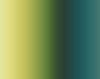 Color
dithering is used in the first image, and no dithering in the
second.
Color
dithering is used in the first image, and no dithering in the
second.
 Modes
Modes
The Modes menu lets you select the fill mode that is used for filling shapes. You will find these similar to drawing modes used by brushes, except that they are used by the fill tools.


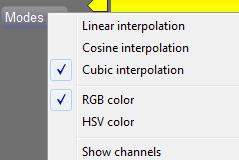 You
can chose between linear, cosine, and cubic interpolation. Linear
is the most predictable, as the colors are simply blended directly
from one to the next. Cosine mode attempts to smooth out the
blends by using a cosine function. The Cubic interpolation mode
creates a smooth blend between each color, but it can be a little
unpredictable at times.
You
can chose between linear, cosine, and cubic interpolation. Linear
is the most predictable, as the colors are simply blended directly
from one to the next. Cosine mode attempts to smooth out the
blends by using a cosine function. The Cubic interpolation mode
creates a smooth blend between each color, but it can be a little
unpredictable at times. The
Sweep editor is called that because you can “Sweep”
your mouse over the channels of color to edit them interactively.
You can also edit a gradient in a more traditional way by adding
“color stops/”
The
Sweep editor is called that because you can “Sweep”
your mouse over the channels of color to edit them interactively.
You can also edit a gradient in a more traditional way by adding
“color stops/” An
opacity channel is included, so you can make parts of your fills
transparent. While the color channels can be created with
drag and drop, you must edit the opacity channel manually by
sweeping over it.
An
opacity channel is included, so you can make parts of your fills
transparent. While the color channels can be created with
drag and drop, you must edit the opacity channel manually by
sweeping over it. You
can see how part of this fill has become transparent.
You
can see how part of this fill has become transparent. There
are times when you want to smooth out the curves you create when
editing a gradient.
There
are times when you want to smooth out the curves you create when
editing a gradient. Holding
the Smooth button down will smooth out your curves until you let
it up.
Holding
the Smooth button down will smooth out your curves until you let
it up. The index slider lets you select or edit any one of 8 gradients.
Gradients come in sets of 8, so there can be lots of variety.
The index slider lets you select or edit any one of 8 gradients.
Gradients come in sets of 8, so there can be lots of variety.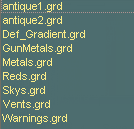 You
can also load and save gradient sets. There are quite a few
that come installed.
You
can also load and save gradient sets. There are quite a few
that come installed.