

| more downloads |
| a great companion to
Project Dogwaffle: AnimeStudio is on sale!  Regular price: $59.95  Sale price: $39.95 (boxed!) |
| Great
Animation Tools 2D + 3D Software at lowest prices! Carrara - Bryce - Poser - Anime Studio - Manga Studio and more |
Time
for a Break! Halo 2 for PC |
|
Digital
Painting has never been
so much fun: Learn to paint with Particle Brushes!  PD
Particles - $19
A fun companion for your digital photo image editor! powered by Project Dogwaffle  |
| from
2D to 3D in just seconds! Simply draw outlines & shapes and see them automagically turn into fully textured 3D shapes! Archipelis Designer  New! now also for Mac! |
| New
v1.5 Fast 3D sketching, colormap, bumpmap and displacement map painting and digital & sculpting: Curvy 3D the fun & intuitive way to sculpt!  ...it's not modeling, it's better: It's liberal sculpting! Great for Fantasy Art, Concept Art & 3D Design, making 3D props, ... Special discount coupons available for users of Project Dogwaffle! (ask us) |
| a great companion to
Project Dogwaffle: AnimeStudio Pro is on sale!  Regular price:
$199.95
Sale
price: $179.95>> free shipping available in the US! |
| New! Penny for PD Particles - Spline based drawing engine
Penny is a Spline based
drawing&painting engine which was first introduced with Project Dogwaffle 2.1
 This version is a free
plugin, rebuilt for PD Particles 1.0 - It will not work with PD Artist
or other versions of Project Dogwaffle.
There is only one file with this free plugin: pdp_penny_paint.exe (160 KB) There is no installer. Instead, you simply put a copy f this file into the folder where you have installed PD Particles. By default this is: C:\Program
Files\PD Particles
Download and save the above file into that folder, or wherever you installed PD Particles if you didn't use the default location. You can then also create a shortcut, perhaps to the desktop, or to another folder which you may have open for easily accessing the plugin. If you have such a folder in which a shortcut exists for cooltools #1, then we recommend that you place the above file there too. (as a shortcut to the actual copy placed in the PD Particles installation folder).
When you launch Penny, the first thing it will do is to display a small, new tools panel.  The existing main tools panel won't disappear, but while
Penny is running, you will want to focus on the new tools offered in
the Penny Tools panel. The existing main tools panel won't disappear, but while
Penny is running, you will want to focus on the new tools offered in
the Penny Tools panel. There are only a few brushes in this Tools panel, plus some familiar viewing controls, and tools to send images to and from the Penny drawing area. There's also the Undo tooland you can use the keyboard shortcut 'u' for undo. The next thing that happens is that a new image buffer is created, and a copy of the current image from PD Particles main image buffer is placed in it. In other words: Penny doesn't start with an empty image: it starts with whatever is in PD Particles at that moment when you launch Penny. Penny then lets you draw in this temporary image buffer. You can start by clearing its buffer, or continue from that image and add to it.  One of the first things you might want to do is to change the brush size from the Size slider, because it might be too thin for you at first. When you're done drawing with Penny, simply close the temporary image buffer from Penny. This will cause the Penny image buffer content to be pasted back into the main image buffer. In other words: it will automatically save the last image you had just prior to closing the Penny drawing area.  Or,
you could use one of the tools on the Penny tools panel to send the
image back to the main image buffer. Penny will continue running. If
you use the cooltools plugins, you could then 'store' the regular image
buffer at this stage, to grab and store a snapshot in memory for later
uses. Or,
you could use one of the tools on the Penny tools panel to send the
image back to the main image buffer. Penny will continue running. If
you use the cooltools plugins, you could then 'store' the regular image
buffer at this stage, to grab and store a snapshot in memory for later
uses.So why might you want to use Penny? What's so special about the tools found in Penny? There are only four brushes, but they are of particular interest to cartoonists, Anime and Manga artists, and artists who like to draw lineart.
 click to enlarge
These are the 4 types of brushes found in Penny:
 Drawing with the Pen
 Drawing with the Water Brush
 Drawing with Ink, changingvalues of Press,
opacity or paper
 fun with Gel brushes
That's it, in a nutshell. The only ingredient missing is what you'll bring to it: your talent to draw line art for Anime, cartoons and comics. Have fun with Penny! |

 |
| >>> Download Penny for PD Particles: |
| newest
version: v1.1 pdp_penny_paint1.1.exe size: 163 KB (167,424 bytes) created: September 14, 2008, 3:50:03 PM |
| Problems using the new version? try older version: pdp_penny_paint.exe |
^ The above file is not an installer They're the actual program executable which you'll need to copy into the folder where you installed PD Particles:
download and save
this file into the folder
containing your
PD Particles installation. Feel free to rename it to a different unique filename or to replace the old version. You can also add a shortcut to your desktop for quick and easy, direct access to Penny Paint (if PD Particles is not running yet, Penny Paint will launch PD Particles).
| Learn
more about Penny Paint |
| the User's Guide (WIP) |
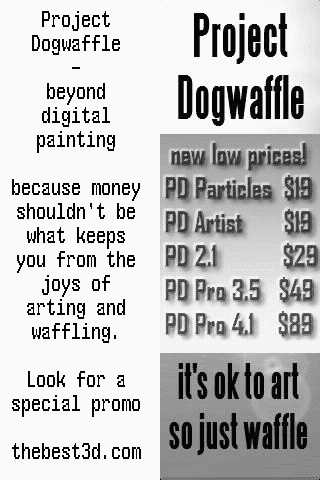
| Do you like PD Particles? then you'll LOVE PD Pro!  see what's new in v3.5 and free update patches even better: Check out what's new in v4! |
| Bryce
5.5 BOXED! Original price: $89.95 Sale
price around $25 |
Inventory Blowout
Sale: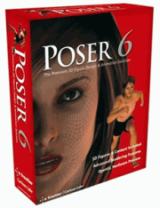 Poser 6 (boxed!) at lowest prices: for MacOs or Windows |
Stop unknown threats before they stop you! NOD 32 - best antivirus, by ESET |
| Finally! 3D for everyone: Carrara (boxed) free shipping for orders $50 and up! (US only) Hurry before they're gone - this is a limited inventory blowout sale around $17 Carrara 3D Basics: so affordable! 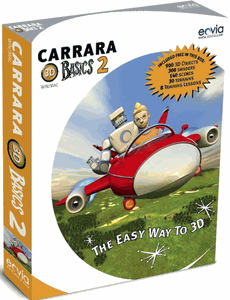 around $40-$50 Carrara 3D Express: wow!  around $50-$60 Carrara 5 Standard: best value! 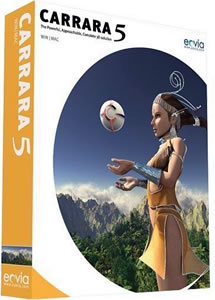 just around $100 Carrara 5 Pro: be a 3D Pro now! 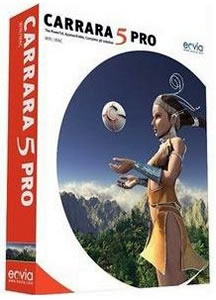 |
| Windows Vista on Sale at Purplus!  |
| The
best AVS
Products for Video & Audio AVS Audio Tools buy | try AVS Video Editor buy | try AVS Video Tools buy | try hot! Best value Bundle: All AVSMedia products in one package! buy |
 |