|
Anti-aliasing
 Anti-aliasing
is a setting that applies smoothing to images when they are
scaled, rotated, or transformed in some way. The effect is
to reduce 'jaggies' or stair steps in the image. Anti-aliasing
is a setting that applies smoothing to images when they are
scaled, rotated, or transformed in some way. The effect is
to reduce 'jaggies' or stair steps in the image.
There are two levels of Anti-aliasing, however Low will often
be sufficient. In most cases, anti-aliasing is accomplished
with bi-linear filtering, a technique the samples values anywhere
in between pixels.
The downside of bi-linear filtering, is that it only uses one
sample for every pixel, and in the case of downsizing an image,
this can still lead to aliasing artifacts.
The High settings will apply multi-sampling, if the tool
supports it. Currently only internal brushes support the
High setting.
|
 A
brush is seen here first without, then with anti-aliasing as it is
scaled to a smaller size. A
brush is seen here first without, then with anti-aliasing as it is
scaled to a smaller size.
|
|
 Note
that while the scaling of internal brushes can be anti-aliased,
the placement of internal brushes is not anti-aliased. The
placement will always fall on pixel coordinates. This might
make the internal brush look rough, or pixilated compared to the
AA pen. Again, sometimes this is desirable, and sometimes it
isn't. That's why you have a choice of different brush
types. Note
that while the scaling of internal brushes can be anti-aliased,
the placement of internal brushes is not anti-aliased. The
placement will always fall on pixel coordinates. This might
make the internal brush look rough, or pixilated compared to the
AA pen. Again, sometimes this is desirable, and sometimes it
isn't. That's why you have a choice of different brush
types.
 The
AA pen will give you smooth lines. The
AA pen will give you smooth lines.
|
|
Tablet Support
 If
you have a tablet that supports pressure, you can take advantage
of the effect by checking the pressure size button. It is
not on by default. This setting is not a tool specific
setting, so you can manage it independently as you switch between
tools. If
you have a tablet that supports pressure, you can take advantage
of the effect by checking the pressure size button. It is
not on by default. This setting is not a tool specific
setting, so you can manage it independently as you switch between
tools.
Pressure Opacity will use the pressure from the tablet to alter
the opacity of the brush.
|
 Pressure
will have slightly different effects on each brush type. In
the case of the AA Pen, the size of the brush is smoothly
interpolated between samples, making for a vary smooth effect. Pressure
will have slightly different effects on each brush type. In
the case of the AA Pen, the size of the brush is smoothly
interpolated between samples, making for a vary smooth effect.
 Internal
brushes also use the pressure effect, however interpolation is not
applied. This can cause a slight 'pop' in the scale of the
brush if the pressure changes drastically between samples. Internal
brushes also use the pressure effect, however interpolation is not
applied. This can cause a slight 'pop' in the scale of the
brush if the pressure changes drastically between samples.
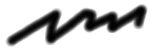 By
default, custom brushes are not allowed to change size or shape
based on any of the brush dynamics on this tab. This is
because custom brushes are often used for moving images around
like a stamp. However, you can enable transformations with
the 'Allow custom brush transforms' checkbox on the Custom tab.
Then custom brushes will behave just like internal brushes. By
default, custom brushes are not allowed to change size or shape
based on any of the brush dynamics on this tab. This is
because custom brushes are often used for moving images around
like a stamp. However, you can enable transformations with
the 'Allow custom brush transforms' checkbox on the Custom tab.
Then custom brushes will behave just like internal brushes.
|
|
Brush Transformations
 Scale
by speed alters the size of the brush based on the speed that you
paint. Scale
by speed alters the size of the brush based on the speed that you
paint.
Random position randomizes the placement of your brush.
Random size randomize the size of your brush
Random Angle randomizes the angle of your brush
Pen angle causes your brush to point in the direction that
|
 If
you do not have a tablet, scaling the brush based on speed will
let you achieve some similar effects based on the speed that you
move your mouse. If
you do not have a tablet, scaling the brush based on speed will
let you achieve some similar effects based on the speed that you
move your mouse.
 Examples
of randomizing the placement of a brush. You can use this to
create a spatter effect, or to make the patterns created by your
brush less predictable. Examples
of randomizing the placement of a brush. You can use this to
create a spatter effect, or to make the patterns created by your
brush less predictable.
|
|
 A
brush with Random size applied. A
brush with Random size applied.
 A
brush with Random angle applied. A
brush with Random angle applied.
|
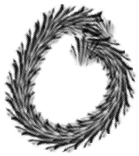 The
Pen angle setting can be very useful for creating brush strokes
that look like they flow along a path. The
Pen angle setting can be very useful for creating brush strokes
that look like they flow along a path.
|
|
Color Transforms
 Random
hue randomizes the hue of the brush. Random
hue randomizes the hue of the brush.
Random Sat randomizes the saturation of the brush
Random value randomizes the value of the brush
Bleed causes your paint color to blend with the colors on
screen.
Dryout causes your paint to fade out, like you are running out
of pigment.
|
 Random
hue alters the hue component of your brush's color to achieve a
variety of new colors. Colors that are close in hue a called
analogous colors, and they can produce very lovely images.
Lower values are preferred, unless you are going to a phycodelic
effect. Random
hue alters the hue component of your brush's color to achieve a
variety of new colors. Colors that are close in hue a called
analogous colors, and they can produce very lovely images.
Lower values are preferred, unless you are going to a phycodelic
effect.
 Random
saturation alters the saturation component of your brush's color,
causing it to look more gray in places. Random
saturation alters the saturation component of your brush's color,
causing it to look more gray in places.
 Random
value alters the value component of your brush's color, with the
effect of lightening or darkening it. Random
value alters the value component of your brush's color, with the
effect of lightening or darkening it.
Note that these effects will work with every brush type,
including custom brushes in either color or matte mode. Use
of each of these effects in combination can produce wonderful
varieties of colors in your brushes.
|
|
 Bleed
is one of the most painterly effects on this tab. It can
achieve very realistic paint like results. A high value is
often required to get the best effect. It should be combined
with lower levels of opacity. Bleed
is one of the most painterly effects on this tab. It can
achieve very realistic paint like results. A high value is
often required to get the best effect. It should be combined
with lower levels of opacity.
 Dryout
is another realistic effect that will make you feel like your
working with actual paint. It can be quite pleasing when
used in combination with bleed. Dryout
is another realistic effect that will make you feel like your
working with actual paint. It can be quite pleasing when
used in combination with bleed.
|
The Custom brush tab contains a number of tools that are useful
for working with your custom brush.
|
 This
control lets you switch your custom brush between Color and Matte
mode. See the section on
brush types for more information. This
control lets you switch your custom brush between Color and Matte
mode. See the section on
brush types for more information.
|
 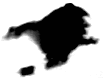 Custom
brushes can be either full color, or work like a regular single
color brush. The modes are called Color (F1) and Matte(F2). Custom
brushes can be either full color, or work like a regular single
color brush. The modes are called Color (F1) and Matte(F2).
|
|
Clicking the 'allow
custom brush transforms' lets you apply dynamic effects to a brush
like random scale and random rotation from the main tab.
 Now
you can transform your custom brushes just like regular brushes.
Even full color brushes can have randomized hue, saturation, and
value. Now
you can transform your custom brushes just like regular brushes.
Even full color brushes can have randomized hue, saturation, and
value.
You may not always want to do this. Sometimes you just
want to copy an image from one place to another, so you can turn
this feature of and off as you need it.
|
Also see the section on brush
types.
|
|
 Along
the left edge of the panel are 4 tools that apply to custom
brushes. They are BrushFX Along
the left edge of the panel are 4 tools that apply to custom
brushes. They are BrushFX
 ,
Patterns ,
Patterns
 ,
the Brush Keyer ,
the Brush Keyer
 ,
and the Brush Manager ,
and the Brush Manager
 . .
|
|
 This
controls will let you build a new airbrush. The shape is
created as a new custom brush. The new brush will contain no
imagery, just a transparency channel (key). The brush is
automatically switched to matte mode. If you happen to
switch to color mode, the brush will appear to be black because
there is no imagery. This
controls will let you build a new airbrush. The shape is
created as a new custom brush. The new brush will contain no
imagery, just a transparency channel (key). The brush is
automatically switched to matte mode. If you happen to
switch to color mode, the brush will appear to be black because
there is no imagery.
 This
control is useful for building airbrush's of custom sizes.
you can make one as large as you like, so you are not limited to
the presets. To use it, just click and drag in the control
to set the new size. This
control is useful for building airbrush's of custom sizes.
you can make one as large as you like, so you are not limited to
the presets. To use it, just click and drag in the control
to set the new size.
|
|
 The
brush radius will be set for you with the above control, but if
you want to, you can set it with the slider. The
brush radius will be set for you with the above control, but if
you want to, you can set it with the slider.
The bias control changes the shape of the airbrush.
Cell size and density control a cellular effect, which can be
useful for simulating bristles in a brush, or for creating unique
textures.
The invert checkbox reverses the effect of the cells.
|
 Bias
changes the falloff from the center. You can get a very hot
center that falls off rapidly, then tapers off, or you can get a
very bulbous falloff. Bias
changes the falloff from the center. You can get a very hot
center that falls off rapidly, then tapers off, or you can get a
very bulbous falloff.
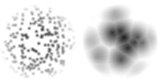 Cell
size controls the size of cells used to create texture effects.
Small cells can be used for bristled, while larger cells start to
resemble the cells in a leaf. Cell
size controls the size of cells used to create texture effects.
Small cells can be used for bristled, while larger cells start to
resemble the cells in a leaf.
 Cell
density controls how many cells appear in the brush. When
there are a lot of cells, they begin to overlap and crowd each
other. Cell
density controls how many cells appear in the brush. When
there are a lot of cells, they begin to overlap and crowd each
other.
|
The PostFX tab lets you apply post process effects to your brush
strokes.
|
 You
brush can take on a whole new look with the post process filters.
These filters are applied after you have finished your brush
stroke and let up on the mouse button or tablet. You
brush can take on a whole new look with the post process filters.
These filters are applied after you have finished your brush
stroke and let up on the mouse button or tablet.
|
|
 The
Impasto and gel effects give a 3d appearance to a brush. The Gel
effect is more translucent and allows more of the original image
to show through. The
Impasto and gel effects give a 3d appearance to a brush. The Gel
effect is more translucent and allows more of the original image
to show through.
|
 The
'Thick oils' preset is a good example of this effect. The
'Thick oils' preset is a good example of this effect.
|
|
 The
watercolor effects change the opacity of the brush, while giving a
dark outline around their edges. This is similar to the way
surface tension causes paint to build up around the edges of
watercolor paint, and dry more darkly. The
watercolor effects change the opacity of the brush, while giving a
dark outline around their edges. This is similar to the way
surface tension causes paint to build up around the edges of
watercolor paint, and dry more darkly.
Pigment controls how much color is blended with the brush
Edge level controls how much pigment builds up and dries around
the edge of the brush stroke.
Lifting controls how much of the underlying color becomes
soluble and lifts (starts to blend with the current brush stroke.)
|
 Examples
of opaque and transparent watercolor effects apply to brush
strokes. Examples
of opaque and transparent watercolor effects apply to brush
strokes.
If you do not get dark or bold enough the first time, press
Shift-a to repeat the brush stroke.
|
|
 The
shadow effect drops a shadow underneath a custom brush. The
shadow effect drops a shadow underneath a custom brush.
Offset controls how far the shadow is cast.
Blur effects how soft and spread out the shadow is.
 Opacity
controls how dark the shadow is. Opacity
controls how dark the shadow is.
|
 
Examples of a brush dropping a shadow.
|
|
 The
model post effect uses the shape defined by the brush stroke to
apply a single color (the primary or secondary color depending on
which button you use) based on a mathematical apply mode. The
model post effect uses the shape defined by the brush stroke to
apply a single color (the primary or secondary color depending on
which button you use) based on a mathematical apply mode.
|
The modes here are the same used by the drawing modes.
This can be useful for applying colors based on those modes, but
without the side effect of the color 'building up' like they do
with the regular drawing tools. They will be applied like
they were a single color on a layer.
The one unique mode here, is the 'Paint on alpha' mode.
This tool will let you paint right into the alpha channel.
It is used be several presets, like 'blobby' under the paint on
alpha menu.
|

 Open
the brush settings panel from the context strip for any tool that
uses the natural media brush.
Open
the brush settings panel from the context strip for any tool that
uses the natural media brush.