

Filling a Rectangle with a gradient of colors
1 - 2 - 3 - part4 - 5

 |
| Very
Affordable 2D + 3D Software Animation Tools at lowest prices! Poser - Anime Studio - Carrara - Manga Studio - Bryce and much more from Purplus |
 |
| Easy,
powerful & affordable 3D with Carrara 7  (download versions at DAZ3D based on v7) Carrara 7 Express Carrara 7 Standard Carrara 7 Pro |
 |
| from
2D to 3D in just seconds! Simply draw outlines & shapes and see them automagically turn into fully textured 3D shapes! Archipelis Designer  New! now also for Mac! |
|
Filling a Region in a Mask In the prior example, we used the filled rectangle tool to render the gradient into it. There is another way to achieve the same effect. But it is inherently much more sophisticated, as it can fill much more than just rectangles. Start by creating a rectangular selection, with the rectangle marquis selection tool.  Drag a rectangular selection. This tool will ultimately be used to create a selection, or mask, seen in the alpha channel, as evidenced by animated dashed lines known as "marching ants"  Now that the selection is made, use the Fill tool to fill it:  Click inside the selected region, and it will apply the same fill parameters as with the filled rectangle tool. It will thus fill the gradient there too. 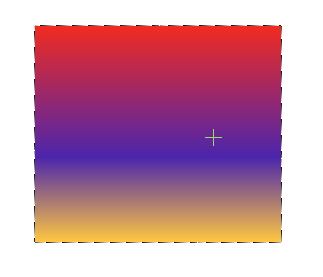 Rectangle with Rounded Corners You can modify the selection in many ways. Use for example the Blur alpha... tool, followed by the Adjust alpha... tool: 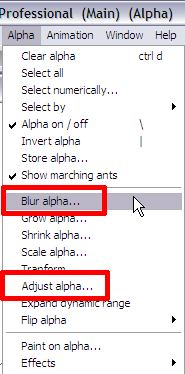 Before doing this, let's grab a snapshot of the current alpha channel. Use "Store alpha" from the Alpha menu:  Put the stored alpha image aside, hang on to it for later. Then click Blur alpha, then set the value to blur the alpha channel:  Use "Store alpha..." again. Now you can compare the two images of the two stored alpha masks, i.e. before and after blurring: 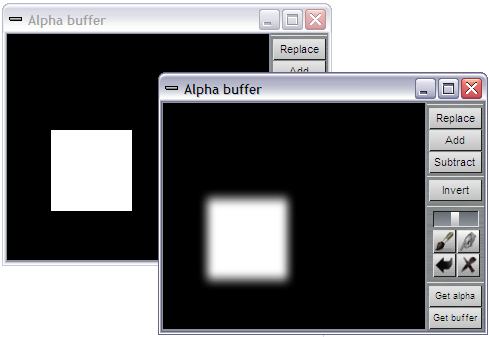 Now, use "Adjust alpha" and set the contrast very high:  If you store this alpha channel, you can now compare three stages:  The net result is that we have a rectangle with rounded corners, as a selection mask. Using the Fill tool, you can now fill this selection with the gradient and other parameters. 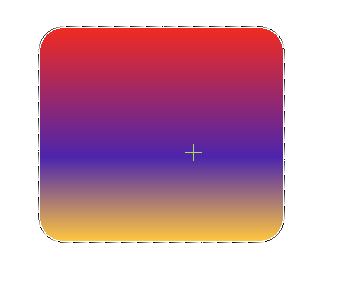 |
 |
 The perfect marriage: |
|
|
|
|
|
|