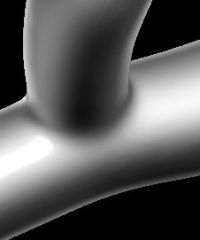
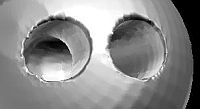
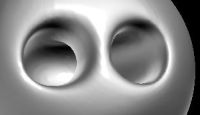
Now let's use the smooth tool

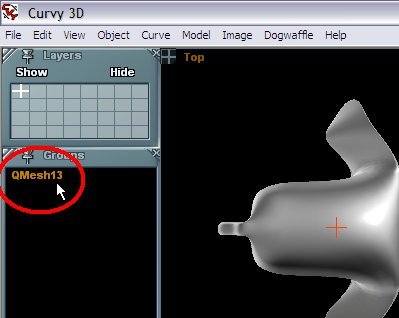
With the object selected, go to the
Model menu and select 'Smooth', or better yet, hit the keyboard
shortcut:
'S' is for Smooth
Shift+S is
for faster smooth
Note that you can use this Smooth shortcut regardless of whether you
have selected a curve on a curve-based object, or when your object is
based on a mesh, as in this example. Indeed, there's a Smooth item in
the Curve menu too, with the same shortcut 'S'. So, whichever is
currently selected - a model altogether, or one of its curves, if any -
S will smooth the currently selected item. (Note: If you don't want
curves to be in your way of smoothing the mesh, use 'K' to kill the
curves and convert the model to a mesh.)
Each and every time that you use the Smooth command, Curvy 3D goes to
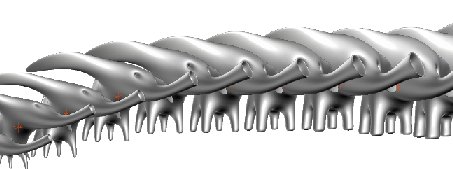
work and smooths the selected model. Here is a timelapse of what
happens to our toon elephant when using Shift+S numerous times. Each
time that I smoothed it, I also went to
Dogwaffle ->
Send to Brush
and added it to a
stored brush timeline as a new frame (Add Frame), thus easily building
a custom animated brush with a sequence of changing elephants.
You can see how the model changed, as Curvy tightened the surfaces as
part of smoothing them.
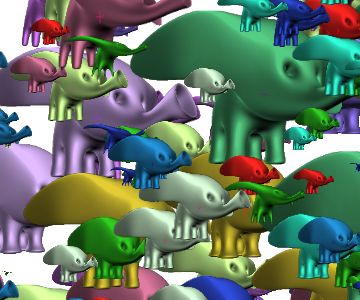
And here's another composition done with it - lots of elephants of
different colors and shapes, thanks in part to Curvy's quick and easy
smoothing tool.
 click
to enlarge
click
to enlarge






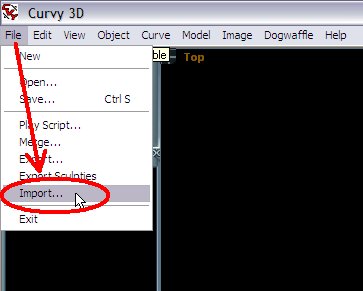 First, import the model.