New
v1.5
Fast
3D sketching, colormap, bumpmap and displacement map painting and
digital & sculpting:
Curvy 3D
the fun & intuitive way to
sculpt!

...it's not modeling, it's better:
It's
liberal sculpting!
Great for Fantasy Art, Concept Art & 3D Design, making 3D props, ...
Special discount coupons available for users of Project Dogwaffle! (ask
us)
|
Digital
Painting has never been
so much fun: Learn to
paint with Particle Brushes!

PD
Particles - $19
A fun companion for your
digital
photo image editor!
powered
by Project
Dogwaffle

|
Getting
started with Digital
Art on a tight budget?

PD
Artist - only $39
Draw,
Sketch, Animate & Paint
powered
by Project
Dogwaffle
|
|
Using
the Gradient: Linear Gradient tool

Now that a gradient is selected and/or customized, let's use it.
One easy way to apply a gradient is with the Linear Gradient tool.
Right-click the linear tools icon in the Tools panel and select it from
the menu.
|
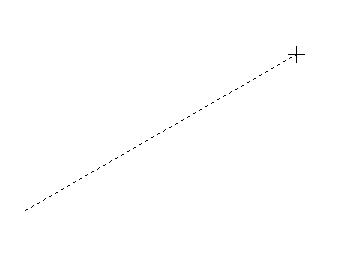
Simply click-and-drag somewhere in your blank image and you'll see a
rubberband line,
Keep going until a certain distance and let go of the mouse button.
|
The gradient is drawn 'perpendicularly' to the path of your rubberband
line. Notice also that the left-most color of the gradient extends to
the left (in this case) and that the right-most color from the gradient
extends to the right on the other end.
|
Here's the result with a different gradient. It has many more color
changes.
 |
The Circular Gradient Tool
 You're
now ready to try the next tool: the circular gradient tool. You're
now ready to try the next tool: the circular gradient tool.
|

Instead of a rubberband line it shows a rubberband circle, centered at
your first click point and change size as you drag the mouse,
until you let go the button to finish.
|
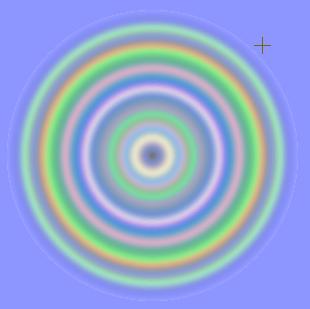
The gradient is now appearing in circles around the center of the
tool's placement.
Note that the final (right-most) color shows around it all. That's
because it is opaque too. You can use the Opacity channel in the
gradient panel and bring it down to zero opacity if you prefer the
final color not to extend beyond the last 'ring'. You can in fact have
transparent parts in the gradient anywhere. We'll have a look at that
in another exercise: part
4 and 5
|
|
|
into 3D: draw
a shape, and see it
automatically turn it into 3D
Archipelis
Designer
cool
tool for rapid 3D model creation and prototyping from images
|
Inventory Blowout
Sale:
Poser 6 (boxed!) at
lowest prices:
for MacOs
or Windows
|
|



